No Wi-Fi? No problem. Google Docs offline mode lets you write, edit, and create documents without an internet connection.
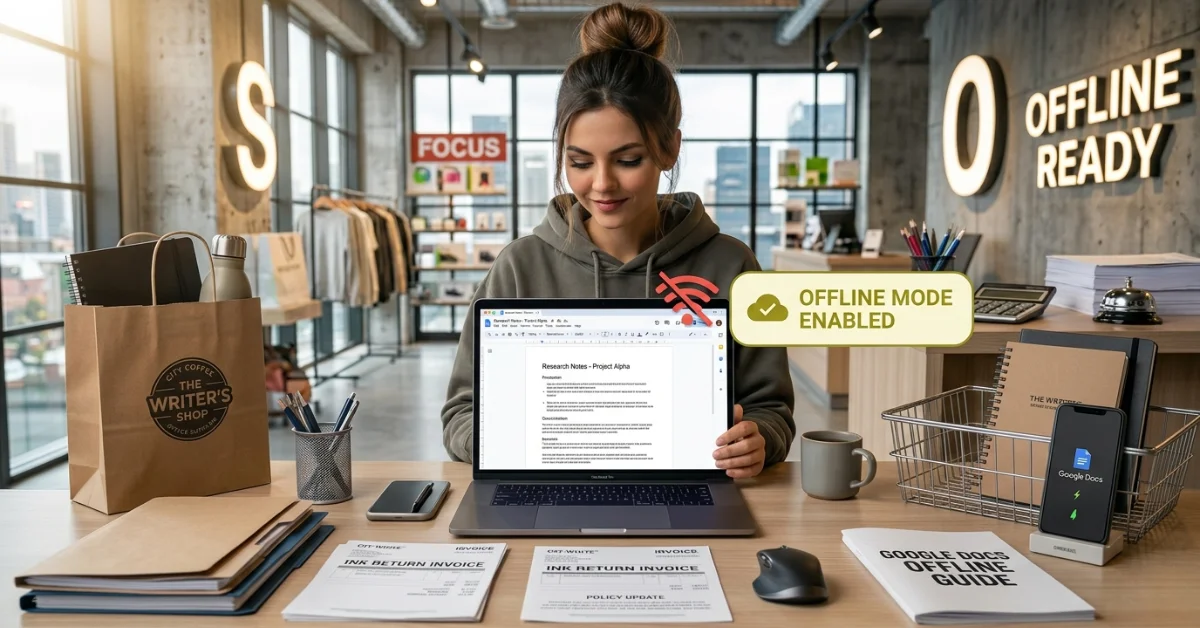
But here’s what most guides won’t tell you — if you don’t set it up correctly beforehand, it simply won’t work when you need it most.
What Is Google Docs Offline Mode — And How Does It Actually Work?
Google Docs offline lets you access and edit your files directly from your browser or app — even without an internet connection.
It works by storing your files in your browser’s local cache. This is not a separate app download. Your device saves a copy of your documents so you can open and edit them anytime.
Google Docs, Google Sheets, and Google Slides all support offline mode. Not every file in Google Drive does — only these three.
You must be connected to the internet first to enable offline access. You cannot turn it on while you are already offline.
If you and a collaborator are both editing the same document — and you go offline — they cannot see your changes. Worse, if they make edits while you’re offline, their version takes priority when you reconnect. Your offline edits get overwritten.
ChromeOS users have it easier. If you use a Chromebook or Chromebox, offline access is already turned on automatically. No setup required.
Google Drive for Desktop (the app installed on your Mac or PC) works differently from browser-based offline. It syncs files into a local folder on your computer. Non-Google files like Word documents, PDFs, and Excel spreadsheets open in their native programs when you’re offline.
For more info: How to Schedule Posts on Instagram – Save Time & Grow Faster
Requirements Before You Enable Google Docs Offline
Before you touch any settings, make sure these are in place. Skipping even one will stop offline mode from working.
You need:
- Google Chrome or Microsoft Edge browser — no other browser works
- A regular browser session, in private or incognito mode, completely blocks offline access
- The Google Docs Offline Chrome extension is installed and turned on
- Enough free local storage on your device to save files
- An active internet connection during setup
Only one Google account per browser profile can use offline mode. If you use multiple Google accounts, you need a separate Chrome or Edge profile for each one.
Never set up offline access on a shared or public computer. Anyone who uses that device after you could access your private documents without your knowledge.
If you use Google Workspace through your job or school, your IT administrator may have blocked offline access entirely. If that’s the case, you’ll see the error: “Your administrator disables offline sync.” You cannot fix this yourself — contact your admin.
How to Enable Google Docs Offline — Desktop, Android & iPhone
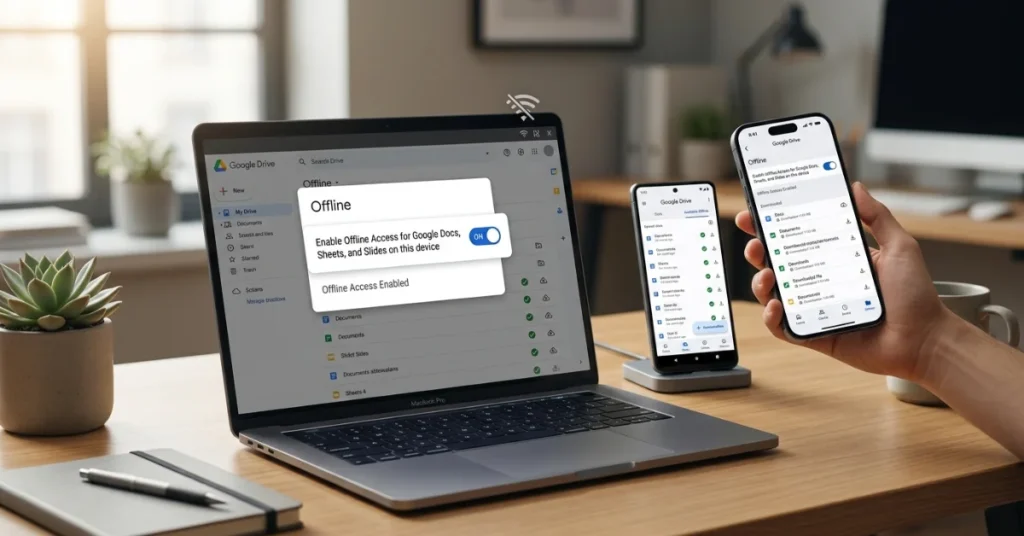
Enabling Offline on Desktop (Chrome or Edge)
Step 1: Open Google Drive in Chrome or Microsoft Edge.
Step 2: Click the Settings gear icon in the top right corner.
Step 3: Click Settings from the dropdown.
Step 4: Toggle Offline to on.
That’s it. Google Drive will begin syncing your most recently opened files immediately.
Shortcut method: Open any Google Doc, click the cloud icon next to the file title at the top, then select Turn on.
Important: Turning on offline for Docs automatically enables it for Google Sheets, Google Slides, and Google Drive, too. You don’t have to do it separately for each app.
Using Microsoft Edge? When you toggle offline on, Edge redirects you to the Chrome Web Store to download the Google Docs Offline extension first. Install it, then go back and toggle the setting again.
Making a Specific File Available Offline (Desktop)
Your most recent files sync automatically. But for files you haven’t opened recently, you need to do this manually.
Method 1: On the Google Drive home screen, click the three-dot menu next to any file → select Available offline. A checkmark appears in the bottom-left corner of the file icon when it’s ready.
Method 2: Open the file → click File in the top menu → select Make available offline.
Enabling Offline on Android
Step 1: Open the Google Docs, Google Sheets, or Google Slides app on your Android phone or tablet.
Step 2: Tap the Menu icon (three horizontal lines) in the top left.
Step 3: Tap Settings.
Step 4: Tap Make recent files available offline.
For a specific file: Tap the three-dot icon next to the file → tap Make available offline.
To find all your offline files: Menu → Offline.
Enabling Offline on iPhone or iPad
The steps are identical to Android. Open the Google Docs, Sheets, or Slides app from the Apple App Store, then follow the same menu path above.
Make sure your iPhone or iPad has enough free storage before enabling this. If storage is low, files won’t sync properly.
ChromeOS — Already Done For You
Chromebook and Chromebox users don’t need to do anything. Offline access is enabled by default on ChromeOS. Your files are already syncing in the background.
You can access your synced files through the Files app on your Chromebook — even without Wi-Fi.
How to Make Specific Files Available Offline — And Check Sync Status
Most people assume all their Google Docs are saved offline once they toggle the setting on. That’s not true.
Only your most recently opened files are cached automatically. Older files or files you haven’t touched in a while need to be manually marked for offline use.
How to check if a file is ready for offline:
Open the document in Google Docs. Look at the top of the screen, next to the file title. You’ll see a cloud icon. Click or tap it. If the file is ready, it confirms offline availability. If it’s not ready, a message explains why.
Common reasons a file won’t sync offline:
- The file is too large — Google Docs has a sync size limit. If a document is too big, it won’t download for offline use. The fix is to split it into smaller, separate documents.
- Your device storage is full — free up space and try again.
- The extension is missing or disabled — reinstall the Google Docs Offline Chrome extension.
What doesn’t work offline:
- Adding or inserting images
- Certain add-ons and third-party integrations
- Real-time collaboration features
- Any file type that isn’t a native Google Doc, Sheet, or Slide
Fixing the sync error on the desktop:
If you see “Checking offline sync status. Please wait.” — reload the page. If that doesn’t work, clear your site data by going to chrome://settings/cookies/detail?site=docs.google.com in Chrome and clicking Remove all. Then disable and re-enable offline in your Drive settings.
Google Docs Offline for Google Workspace — Admin Controls Explained
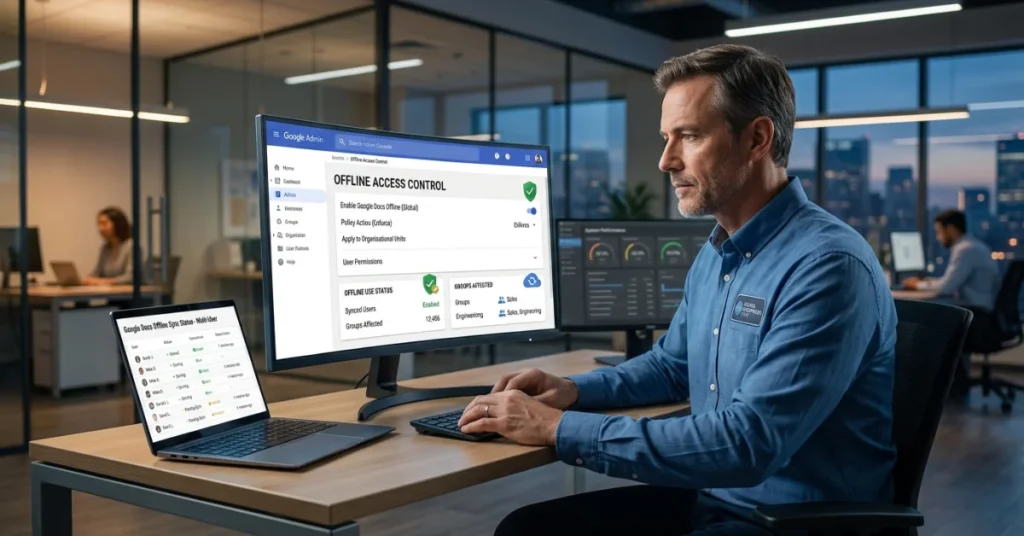
If you manage Google Workspace for a business, school, or organization, you control whether your users can even use offline mode.
Here’s how it works:
Go to the Google Admin Console → Apps → Google Workspace → Drive and Docs → Features and Applications → find the Offline setting.
You have two choices:
Option 1 — Recommended: Select “Allow users to enable offline access.” This is the easiest path. Users can toggle offline for themselves. Their recent files sync and save on trusted computers automatically.
Option 2 — Policy-Based Control: Use device policies to control offline access on managed computers. This gives IT teams more security control but requires more setup.
Here’s how policy deployment works by operating system:
Windows: Download and deploy ADMX and ADML Group Policy template files for Chrome or Microsoft Edge. Use the Group Policy Editor to allow specific domains for offline access.
macOS: Download the plist configuration file, edit it with your domain name, convert it using a tool like mcxToProfile, then install the .mobileconfig file on each managed Mac.
Linux: Download the configuration file, replace the domain placeholder with your organization’s domain, and place the file in /etc/opt/chrome/policies/managed/ for Chrome or /etc/opt/edge/policies/managed/ for Edge.
Critical warning for admins: If you switch from Option 1 to Option 2 without first deploying the policy to all managed computers, users who had offline access will lose it within 24 hours.
Also, policy-based offline control does not apply to ChromeOS devices or mobile devices (phones and tablets). Those are managed separately.
For teams needing local network collaboration when the internet is down, consider tools like Syncthing (peer-to-peer file sync) or Nextcloud (self-hosted collaboration platform) as alternatives to Google Docs offline.
FAQ — Google Docs Offline Questions Answered
Can you work on a Google Doc offline?
Yes. You can create, view, and edit Google Docs offline as long as you set up offline access beforehand while connected to the internet. You need the Google Docs Offline Chrome extension installed and offline mode enabled in your Google Drive settings. On Android and iPhone, use the Google Docs app — no extension needed.
How to use Google without the internet?
Enable Google Docs offline mode before you lose your connection. On desktop, go to Google Drive Settings → Offline → Toggle on. On mobile, open the Google Docs, Sheets, or Slides app, go to Settings, and tap Make recent files available offline. Once set up, you can open, edit, and save documents with no Wi-Fi or data connection.
Why can’t I edit my Google Docs offline?
There are several common reasons. You may be using a browser other than Google Chrome or Microsoft Edge. You might be in private or incognito mode, which blocks offline sync. The Google Docs Offline Chrome extension may not be installed or enabled. Your device storage could be full. Or your organization’s IT administrator may have disabled offline access for your Google Workspace account.
How does offline mode work on Docs?
When you enable offline mode, Google Drive saves copies of your selected files into your browser’s local cache or app storage. You can then open and edit those files without any internet connection. Any changes you make are stored locally. When your internet connection returns, Google Docs automatically syncs your edits back to the cloud. If a collaborator edited the same file while you were offline, their version takes priority.
Is Google Docs offline worth it?
Absolutely — especially if you travel frequently, work in areas with unreliable Wi-Fi, or experience regular internet outages. Google Docs offline gives you uninterrupted access to your documents at no extra cost. It’s built into your existing Google account. The only real limitation is that real-time collaboration is paused while offline, and some features like image insertion and add-ons don’t work without internet.
How to use offline mode in the Docs mobile?
On Android or iPhone/iPad, open the Google Docs, Google Sheets, or Google Slides app. Tap the Menu (three lines) → Settings → Make recent files available offline. For a specific document, tap the three-dot icon next to the file name and select Make available offline. Your files will be stored on your device and accessible even when mobile data and Wi-Fi are both off.
Conclusion:
Google Docs offline is a powerful feature — completely free and built right into your existing Google account.
Set it up while you’re online, use Chrome or Edge, install the extension, and choose which files matter most. Everything else happens automatically.
The one rule to remember: prepare before you go offline. You cannot enable it after your connection drops.