Over 82% of smartphone users now prefer dark mode for everyday use. Yet most guides only show you the basic settings toggle — and stop there.
This guide covers everything. Whether you have a brand-new iPhone, a Samsung Galaxy, an older Android 8 or 9 device, or an app that flat-out refuses to go dark, you will find the exact fix here. Simple steps. No tech background needed.
What Is Dark Mode & Why Everyone Is Switching to It
Dark mode switches your screen from a white background with dark text to a dark — usually black or deep gray — background with light text. It is available system-wide on both Android and iPhone.
It is not just about looks. There are real, documented reasons millions of people are making the switch.
Dark Mode vs Night Mode — What Is the Real Difference?
Many people use these terms interchangeably — but they are not the same thing.
Dark mode changes the visual theme of your apps and interface to dark colors. It works all day long and is a permanent UI choice.
Night mode (also called Night Shift on iPhone or Night Light on Android) adjusts the color temperature of your screen — it adds a warm amber tint to reduce blue light. It does not change backgrounds or text colors.
They serve different purposes. Dark mode reduces brightness and contrast. Night mode reduces blue light emission. For the best eye protection at night, many users run both together.
Pro Tip: Go to Settings → Display → Night Light (Android) or Settings → Display & Brightness → Night Shift (iPhone) and schedule it to activate automatically at sunset.
For more info: How to Reheat Pizza in the Oven (Crispy Like Fresh!)
Does Dark Mode Save Battery Life? OLED vs LCD Truth Explained
On OLED and AMOLED displays — found in most modern Samsung Galaxy, Google Pixel, and iPhone models — dark mode delivers real, measurable battery savings. This is because OLED pixels that display pure black are literally switched off. No power consumed. Google confirmed in a 2018 Pixel study that a pure black screen at max brightness uses 63% less power than a white screen.
On LCD displays — common in older or budget Android devices — the backlight stays fully on regardless of screen color. Dark mode on an LCD screen saves virtually zero battery.
Bottom line: If your phone has an OLED screen, dark mode is a genuine battery-saving tool. If it has an LCD, the benefit is eye comfort only.
Health Benefits of Dark Mode — Eye Strain, Sleep & Migraines
Does dark mode reduce eye strain? Yes — especially in low-light environments. Bright white screens in dark rooms force your pupils to constrict constantly, causing fatigue. A dark interface reduces that contrast shock significantly.
A 2021 study published in Ergonomics found that dark mode reduced visual discomfort for users working in dim conditions. The American Migraine Foundation also notes that bright screen light can act as a migraine trigger in photosensitive individuals. Switching to dark mode for apps can meaningfully reduce that exposure.
Sleep research shows that blue light suppresses melatonin production. While Night Shift / Night Light handles the blue light angle, dark mode reduces overall screen luminance — another sleep disruptor when used at night.
How to Enable Dark Mode on Android — All Methods Explained
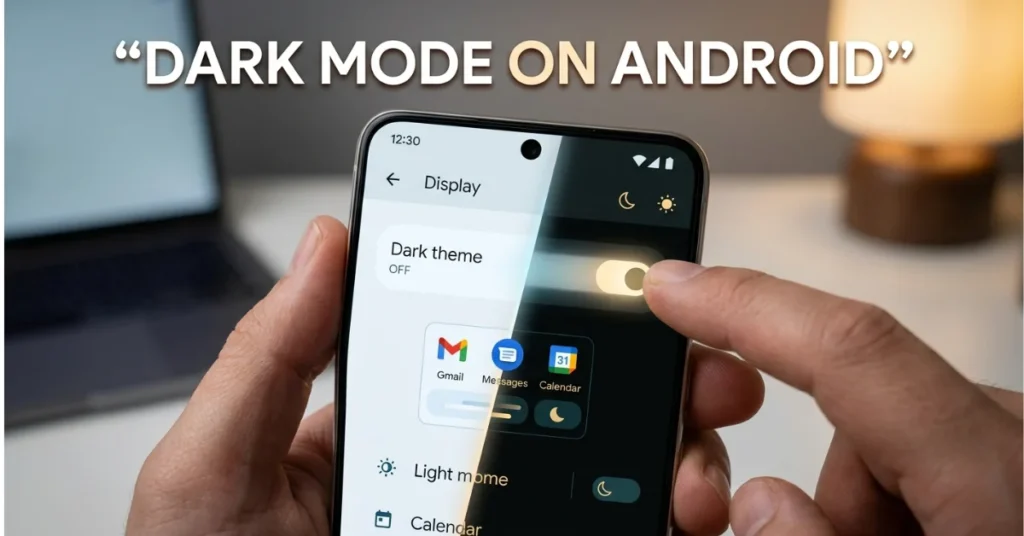
Android offers three different ways to enable dark mode. Which one you need depends on your device and Android version.
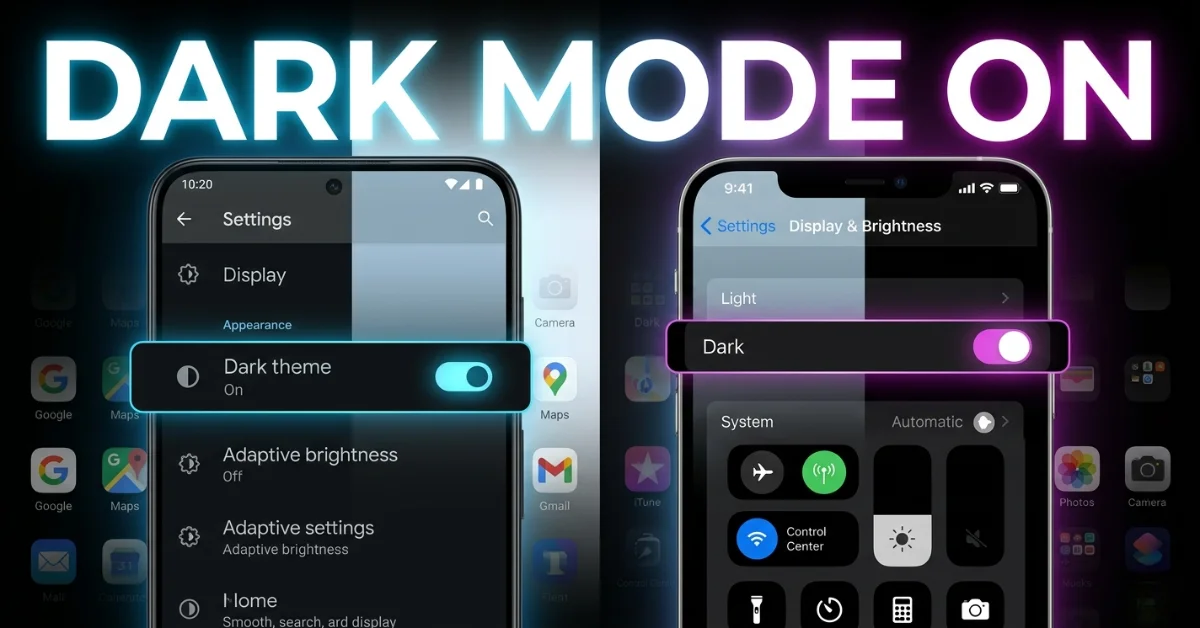
Native Dark Theme — Settings → Display → Dark Theme (Android 10 & Above)
This is the cleanest and most complete method. Android 10 and above — including Android 11, 12, 13, 14, and 15 — all support a native system-wide dark theme.
Steps to enable dark mode on Android:
- Open the Settings app on your phone.
- Tap Display.
- Tap Dark theme or Dark mode.
- Toggle it ON.
All apps that follow the Android system dark theme will switch automatically. This includes Gmail, Google Maps, Google Chrome, Google Photos, and most major apps.
Battery Saver shortcut: On most Android devices, enabling Battery Saver mode automatically activates dark theme. Go to Settings → Battery → Battery Saver to turn this on.
Force Dark Mode Using Developer Options (Override Force-Dark)
Some apps do not support the system dark theme natively. For those, Android has a hidden developer option called Override force-dark (Google and OnePlus devices) or Force Dark mode (Samsung Galaxy devices).
How to enable Force Dark mode on Android:
- Open Settings → About Phone.
- Tap Build Number 7 times rapidly until you see “You are now a developer.”
- Go back to Settings → Developer Options.
- Scroll to the Hardware Accelerated Rendering section.
- Toggle Override force-dark (Google/OnePlus) or Force Dark mode (Samsung) to ON.
- Make sure the system dark theme is also enabled for this to work.
Important: Not all apps will respond to Force Dark. Some app developers deliberately opt out of using the code parameter android:forceDarkAllowed=”false” in their app build. This means the app actively blocks Force Dark from overriding its theme. There is no workaround for this short of using a third-party dark mode app.
Android 15 users: A brand new option called “Make all apps dark” has been added under Settings → Accessibility → Color and Motion. This method works on more apps than Override force-dark and does not affect images — making it a cleaner, more reliable solution.
How to Enable Dark Mode on Older Android Devices (Android 8 & 9)
Running Android 8 Oreo or Android 9 Pie? Your device does not have a native dark theme setting. Many manufacturers stripped it out entirely.
The solution is the Dark Mode App by dotdat — available free on the Google Play Store (package: com.dotdat.darkmodeapp). It activates Android dark mode on devices that have no native option in system settings.
It works by enabling system-wide dark mode on Android 9 and forcing supported apps like Facebook, WhatsApp, Instagram, and Google Apps into their dark themes. User reviews confirm it works on low-end devices running Android 8 without causing lag or performance issues.
Note: The app will not work on some devices where the manufacturer has completely disabled dark mode at the OS level. Check the Google Play listing reviews for your specific device model before downloading.
How to Enable Dark Mode on iPhone — All Methods Explained
Apple introduced system-wide dark mode in iOS 13. Every iPhone running iOS 13 or later — which covers virtually every iPhone in use today — supports it natively.
Native Dark Mode — Settings → Display & Brightness → Appearance (iOS 13+)
How to turn on dark mode on iPhone:
- Open the Settings app.
- Tap Display & Brightness.
- Under Appearance, select Dark.
You can also toggle dark mode from Control Center. Long-press the brightness slider and tap the dark mode icon at the bottom left.
To schedule dark mode automatically: Go to Settings → Display & Brightness → Automatic and set it to activate at Sunset to Sunrise or at a custom time you choose.
How to Set Dark Mode for Specific Apps on iPhone (iOS Shortcuts Automation)
This is what most iPhone guides completely miss.
iOS does not have a built-in per-app dark mode toggle. But the iOS Shortcuts app lets you build an automation that switches appearance when you open or close specific apps.
How to set per-app dark mode on iPhone using Shortcuts:
- Open the Shortcuts app (pre-installed on all iPhones).
- Tap Automation → New Automation.
- Select App → choose the app you want.
- Set the trigger to Is Opened.
- Add action: Set Appearance → Dark.
- Build a second automation for when the app Is Closed — set it to revert to your system appearance.
This gives you effective per-app dark mode control on iPhone — something Apple has not yet built natively into iOS 17. It is the closest workaround available until Apple adds a true per-app appearance toggle.
Per-App Dark Mode Settings — Which Apps Have Built-In Override Options
Some major apps include their own dark mode toggle that works independently of the iOS system settings.
- Reddit — Profile icon → Settings → Dark Mode toggle
- Twitter/X — Settings → Display → Background → select Dim or Lights Out
- Instagram — Follows system setting; no independent toggle on iOS
- YouTube — Profile icon → Settings → General → Dark Theme
- WhatsApp — Settings → Chats → Theme → select Dark
Apps with their own override let you keep them in dark mode even when your phone is in light mode — and vice versa. These are the most flexible for custom dark mode preferences.
How to Force Dark Mode on Apps That Don’t Support It
Some apps actively resist dark mode. Here is exactly how to handle them on both Android and iOS.
Android Developer Options — Step-by-Step for Samsung, Pixel, OnePlus & Xiaomi
Device-specific naming for Force Dark:
- Samsung Galaxy (One UI): Settings → Developer Options → Force Dark mode
- Google Pixel: Settings → Developer Options → Hardware Accelerated Rendering → Override force-dark
- OnePlus: Settings → Developer Options → Override force-dark (same as Pixel)
- Xiaomi (MIUI): Settings → Developer Options → Dark theme (Xiaomi uses different naming)
On all devices, Developer Options is hidden by default. Access it by tapping Build Number 7 times in Settings → About Phone. This is safe and easy to undo — simply toggle Developer Options off from the same menu.
According to the official Android Developers documentation at developer.android.com, Force Dark works by algorithmically inverting light-colored UI elements. However, apps built with Material Design DayNight theme and AppCompatDelegate will use their own proper dark colors instead — producing a much higher quality result than Force Dark.
Best Dark Mode Apps for Android — Dark Mode App (Google Play) Reviewed
When developer options are not enough, third-party apps fill the gap.
Dark Mode App by dotdat — (com.dotdat.darkmodeapp on Google Play) is the most accessible free option. Works on Android 8, 9, and above. Enables dark mode for social apps, Google apps, WhatsApp, Instagram, and Facebook on devices that lack native support. No root required.
Adaptive Theme — A more advanced option that uses your phone’s light sensor to switch dark mode on or off automatically based on ambient lighting. Requires enabling USB Debugging in Developer Options during setup. Fully open-source — meaning anyone can inspect the code to confirm it does exactly what it claims.
Facebook, WhatsApp & Instagram Dark Mode — Why They Behave Differently
These three apps confuse more users than any others when it comes to dark mode. Here is why.
Facebook has a known quirk with Force Dark mode on Android. Even after enabling Override force-dark in developer options, Facebook may remain in light mode. The fix: toggle your system dark mode OFF, then back ON. This forces Facebook to re-read the system settings and apply them.
WhatsApp follows the system dark theme on both Android and iOS when set to “System Default” in its own theme settings. Go to WhatsApp → Settings → Chats → Theme and confirm it is set to System Default or Dark.
Instagram on Android and iOS follows the system-wide dark mode automatically on newer versions. There is no independent dark mode toggle inside the app. If Instagram is not going dark, your system dark theme may not be fully enabled — double-check your display settings.
Dark Mode for Every Major App — Quick Settings Guide
Here is the exact path to enable dark mode in every app that US users open most. Some follow system settings automatically. Others need manual activation.
How to Turn On Dark Mode in Google Apps, Gmail & YouTube
Google Chrome: Three-dot menu → Settings → Appearance → select Dark. Available on both Android and iPhone.
Gmail: Follows system dark theme on Android automatically. On iPhone: Gmail → Menu → Settings → General Settings → Theme → Dark.
Google Maps: Profile icon → Settings → Dark mode. Available on Android. On iPhone, it follows the iOS system settings.
YouTube: Profile icon → Settings → General → Dark Theme. Independent toggle — works regardless of system settings on both Android and iPhone.
Google Photos: Follows Android system dark theme automatically. On iPhone: Library → Utilities → Photo settings (limited control).
Dark Mode in WhatsApp, Instagram & Facebook — Exact Steps
WhatsApp (Android & iPhone): Settings → Chats → Theme → select Dark.
Instagram (Android & iPhone): No manual toggle — follows system dark mode automatically. Enable dark mode system-wide to switch to Instagram.
Facebook (Android): Menu (three lines) → Settings & Privacy → Dark Mode → On. If it reverts, toggle system dark mode off and on again.
Facebook (iPhone): Menu → Settings & Privacy → Dark Mode → select On.
Messenger: Profile picture → Dark Mode → toggle ON. Independent of system settings.
Dark Mode in Chrome, Twitter/X, Reddit & TikTok
Twitter/X (Android & iPhone): Profile icon → Settings → Accessibility, Display and Languages → Display → Background. Choose Dim (dark gray) or Lights Out (true black — best for OLED screens).
Reddit (Android & iPhone): Profile icon → Settings → Dark Mode toggle. Independent of system settings.
TikTok (Android & iPhone): Profile → three-line menu → Settings → Dark Mode. Toggle ON.
Snapchat (Android & iPhone): Profile → Settings (gear icon) → App Appearance → Always Dark.
For any app not listed here: open the app → find Settings → look for Display, Theme, or Appearance. Per the official Google Play Help guidance at support.google.com/googleplay/answer/9730685, if no Display or Theme option exists, the app does not yet support dark mode natively.
FAQ — How to Enable Dark Mode on Any App
How to enable dark mode for all apps?
On Android: go to Settings → Display → Dark Theme. All apps that support system dark mode switch instantly. For apps that resist, use Developer Options → Override force-dark. On Android 15, use Settings → Accessibility → Color and Motion → Make all apps dark for broader coverage. On iPhone: Settings → Display & Brightness → Dark gives you system-wide dark mode for all supporting apps.
How do I turn apps to dark mode?
Enable system-wide dark mode first — this handles most apps automatically. For apps with their own toggle (YouTube, WhatsApp, Twitter/X, Reddit), open the app → Settings → Display or Theme → Dark. For apps that do not respond to system dark mode on Android, use Force Dark in Developer Options or the Dark Mode App from Google Play.
Does dark mode help with migraines?
Yes — for many migraine sufferers, it can reduce triggers. The American Migraine Foundation identifies bright screen light as a photosensitivity trigger. Dark mode significantly reduces screen luminance. While it is not a treatment, switching to dark mode on all apps reduces the bright-light exposure that can precede or worsen migraine episodes.
Can I set dark mode for specific apps?
Yes — two ways. First, check if the app has its own built-in dark mode toggle in its settings (YouTube, WhatsApp, Twitter/X all do). Second, on iPhone, use the iOS Shortcuts app to build an automation that switches appearance when you open or close specific apps. This is currently the only per-app dark mode method on iOS.
How do I activate dark mode?
Android: Settings → Display → Dark Theme → toggle ON. iPhone: Settings → Display & Brightness → Appearance → select Dark. You can also add a dark mode toggle to Control Center for one-tap access. On Android, pull down the notification shade and tap the dark mode quick tile if it is visible.
Why do Gen Z prefer dark mode?
Multiple factors drive Gen Z’s preference for dark mode. Research by Android Authority found that over 91.8% of surveyed Android users use dark mode. Gen Z spends more time on screens than any previous generation — making eye comfort a practical priority. Dark mode also extends battery life on OLED smartphones, which dominate the premium tier Gen Z gravitates toward. Aesthetically, the darker interface aligns with design trends Gen Z finds more modern and less visually aggressive than stark white interfaces.
Conclusion
Enabling dark mode on every app is no longer complicated — once you know which method to use for your device and your app.
Start with your system settings. It handles the majority of apps instantly. For the stragglers, use Force Dark on Android, the iOS Shortcuts automation on iPhone, or a dedicated app like Dark Mode App by dotdat for older devices. Your eyes — and your battery — will notice the difference.